AI Image Extender: Expand Photos to Any Size Without Cropping
Pick a new shape, like a 9:16 Story, a 16:9 banner or a square post, and AI fills the missing edges so nothing gets cut off. Your original photo stays exactly as it was.
By uploading you agree to our Terms & Privacy Policy
Our AI Tools
AI-powered photo enhancement, restoration, colorization, and object removal.
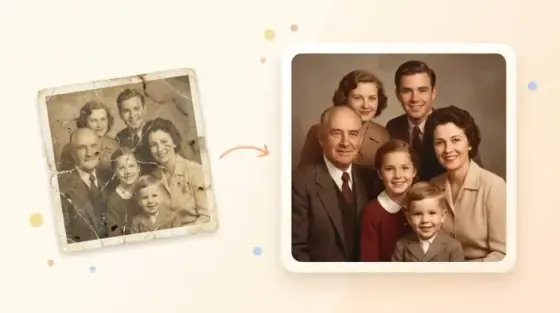
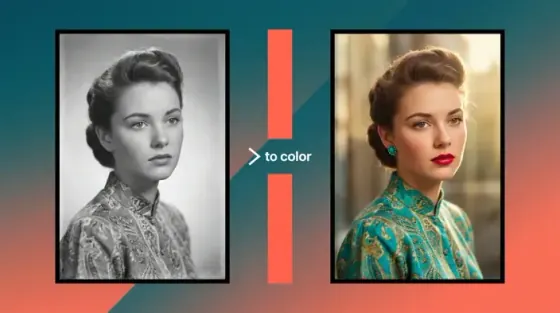
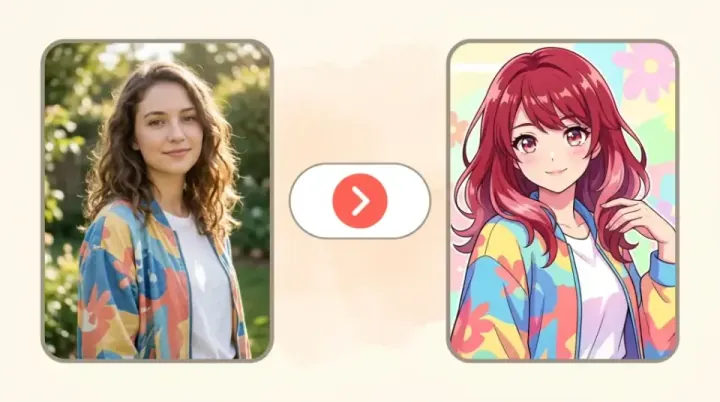
What the Picverce AI Image Extender Can Do
Fit any photo into a new shape without cropping it.
New edges, nothing cropped
Change a photo to a new shape and the AI paints the missing area, so you keep every part of the original.
Drag to place
Move your photo inside the frame to choose where the new area goes.
Zoom out
Shrink the photo down to 50% so every side gets new area.
Presets for the places you post
Instagram, Stories, Pinterest, YouTube, X headers, LinkedIn banners and classic ratios, or your own ratio.
Optional prompt
Describe the new area in up to 300 characters, or leave it to the AI.
Platform downloads
Get the exact upload size where the platform publishes one.
Regenerate
Not happy with the edges? Run it again with the same settings.
Your original pixels stay put
After the AI fills the new area, your photo is pasted back on top at its exact position and size.
Upscale after
Send the result to 2x, 4x or 8x upscaling in one click.
No watermark
Downloads come without a Picverce AI watermark.
Works in the browser
No app to install, on desktop or phone.
Saved to History
Signed-in users can reopen or delete past results.
Ready to extend a photo?
Upload an image above and pick a shape to get started.
Image Extender Results Gallery
The same photos before and after Picverce AI filled the new area.
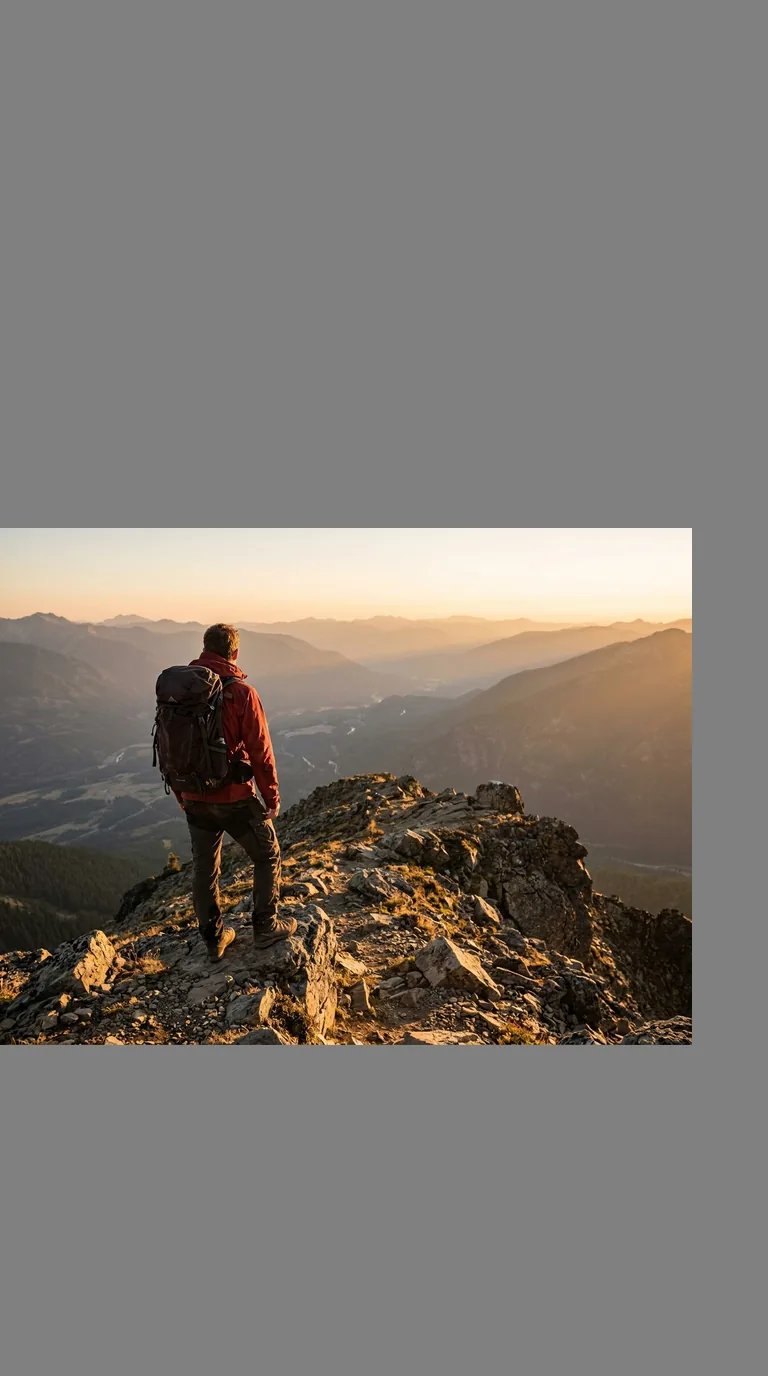 Before
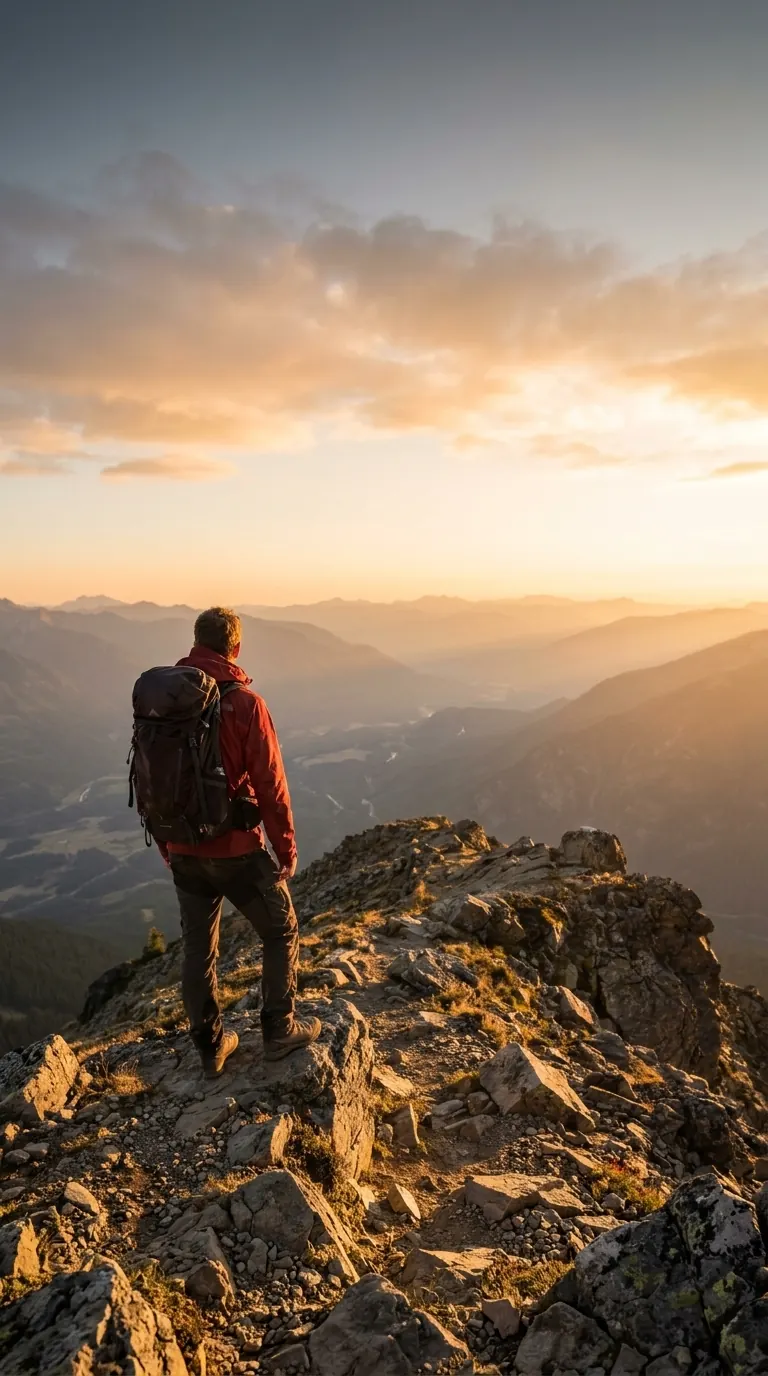 After
AfterLandscape photo to a vertical Story
A wide photo gets new sky and ground so it fills a 9:16 Story without cutting off the sides.
- Top and bottom filled
- Original kept at full width
- Ready for Stories and Reels
Image sizes for every platform
Pick a preset and the frame matches the platform. Where a platform publishes an upload size, the download menu also offers that exact size.
| Preset | Ratio | Download size |
|---|---|---|
| Instagram post | 1:1 | 1080 × 1080 px |
| Instagram portrait | 4:5 | 1080 × 1350 px |
| Story / Reel | 9:16 | Up to 2048 px on the long side |
| 2:3 | 1000 × 1500 px | |
| YouTube / widescreen | 16:9 | 3840 × 2160 px |
| X header | 3:1 | 1500 × 500 px |
| LinkedIn banner | 4:1 | 1584 × 396 px |
| 3:2 | 3:2 | Up to 2048 px on the long side |
| 2:3 | 2:3 | Up to 2048 px on the long side |
| 4:3 | 4:3 | Up to 2048 px on the long side |
| 3:4 | 3:4 | Up to 2048 px on the long side |
| 21:9 | 21:9 | Up to 2048 px on the long side |
Need another shape? Type your own ratio, with each side from 1 to 30.
After you extend: make it bigger with the Image Upscaler, cut out the subject with the Background Remover, or change details with the AI Image Editor.
How to extend an image
Four steps to fit any photo into a new shape with Picverce AI.
Upload your photo
Use a JPG, PNG or WEBP up to 5 MB. Sharp photos with clear edges extend best.
Pick the new shape
Choose a preset such as Story, banner or square, or type your own ratio.
Place your photo and extend
Drag the photo inside the frame or zoom out, add an optional note, then press Extend.
Compare and download
Check the before and after with the slider, then download, upscale or regenerate.
Ready to extend a photo?
Upload a photo above and pick a shape.
Frequently asked questions about the image extender
What to expect when you extend a photo with Picverce AI.
You pick a new shape, and Picverce AI places your photo inside that frame. The AI paints the empty area so the scene continues past the old edges. Your original pixels are put back on top at the end, so the part you uploaded stays exactly as it was.