Christmas Photo Filter: Add Snow, Lights and a Warm Glow
Keep the photo you took, with the same place, clothes and poses, and add falling snow, fairy lights, a frosted window frame or a warm holiday glow.
By uploading you agree to our Terms & Privacy Policy
Your photo is only used to create your Christmas photo. When you are signed in, it stays in your History for the same period as your other images, from 3 days on Free up to 90 days on Premium, and you can delete it sooner.
Our AI Tools
AI-powered photo enhancement, restoration, colorization, and object removal.






What the Picverce AI Christmas Photo Filter Can Do
Keep your photo as it is and add one Christmas effect.
Your photo stays your photo
The tool is told to keep the composition, setting, clothes and poses exactly, and only add the effect you pick.
Real snow look
Flakes in front of and behind people, not a flat overlay.
Light on the edges
Fairy light bokeh sits around the frame, not over faces.
Five Christmas filters
Falling snow, fairy lights glow, a frosted window frame, a warm holiday glow or snow on the scene.
Frosted frame
Frost at the edges that fades to clear in the middle.
Warm grade
A candlelight color grade with a soft vignette.
4 credits per image
Every filter costs the same.
Faces left alone
Every face, age and skin tone is kept, and the effects are told to stay clear of faces.
Regenerate
Try another filter on the same photo in one click.
Upscale after
Send the result to 2x, 4x or 8x upscaling.
No watermark
Downloads come without a Picverce AI watermark.
Saved to History
Signed-in users can reopen or delete past results.
Ready to add some snow?
Upload a photo above and pick a filter.
Christmas Photo Filter Examples
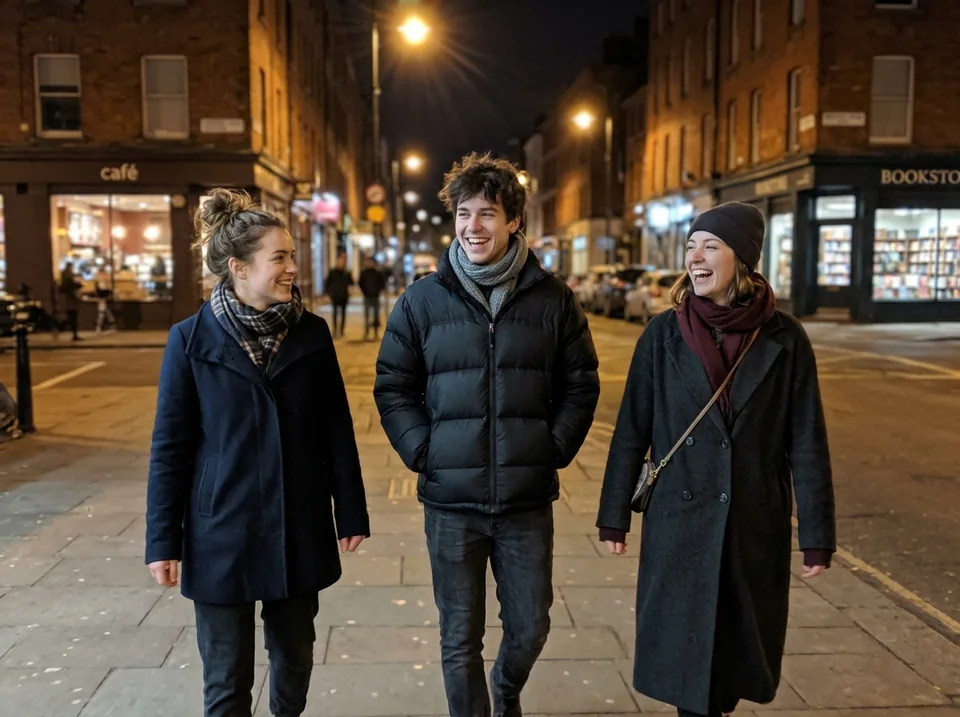
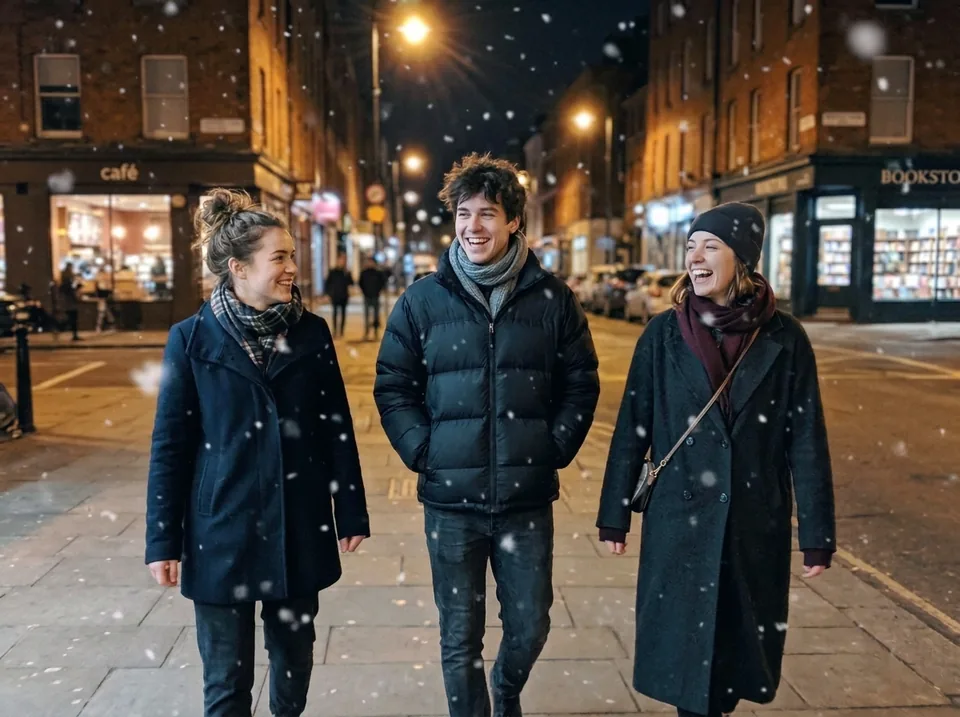
Illustrative, AI generated examples of three filters. Your result depends on your photo. Drag the slider to compare.
 Before
 After
Snow added to a street photo
Three friends on a city street at night, the same street and people, now with snow falling across the frame.
- Same composition
- Same people and poses
- Falling snowflakes
Filter or full Christmas scene?
A filter keeps the photo you took and adds an effect. A scene moves the people into a new Christmas setting. Both cost 4 credits.
Use the Christmas Photo Filter when
- You like the photo and the place it was taken
- You want snow, lights or a warm glow on top
- The composition and clothes must not change
- It is a street, garden, room or landscape shot
Use AI Christmas Photo when
- You want a new setting, like a tree or a fireplace
- The original background is plain or unwanted
- You are making a family or pet card photo
- You want everyone in matching pajamas
Want a new setting? Try AI Christmas Photo. Need a festive avatar? Use the Christmas Profile Picture Maker.
How to add a Christmas filter to a photo
Four steps to snow, lights or a warm glow on your own photo.
Upload your photo
Use a JPG, PNG or WEBP up to 5 MB. Any shape works, and the result keeps it.
Pick a Christmas filter
Choose falling snow, fairy lights glow, a frosted frame, a warm glow or snow on the scene.
Apply the filter
Press Apply Filter. It costs 4 credits, taken only when the result comes back.
Compare and download
Check the before and after with the slider, then download, upscale or try another filter.
Ready to add some snow?
Upload a photo above and pick a filter.
Frequently asked questions about the Christmas photo filter
What to expect when you add a Christmas effect with Picverce AI.
It keeps your photo as it is and adds one Christmas effect: falling snow, a fairy lights glow, a frosted window frame, a warm holiday glow or a layer of snow on the scene. The composition, setting, clothes and poses are meant to stay the same.
Yes. Group photos, family photos and pet photos all work. The tool is told to keep every person and pet where they are and not to add or remove anyone.
Your photo is only used to make the filtered image. When you are signed in, the photo and the result stay in your History for the same period as your other images, from 3 days on Free up to 90 days on Premium, and you can delete them from History at any time.
The tool is told to keep every face, age and skin tone exactly as in your photo and to keep the effect off faces. Results still depend on the photo. Sharp photos in even light keep faces closest to the original.
Each filtered image costs 4 credits, on every filter, and so does each Regenerate. The free plan gives you 10 credits a day, which covers 2 filtered photos. Credits are only taken when a result comes back.
The result keeps the shape of your upload. If you need a bigger file, upscale it 2x, 4x or 8x after the filter is applied.
No. Downloads come without a Picverce AI watermark, on the free plan too.
Outdoor shots, streets, gardens and living rooms take snow and lights well. Use a sharp photo with even light and no heavy filters already on it. JPG, PNG and WEBP files up to 5 MB are accepted.