How to add a Christmas filter to your photos
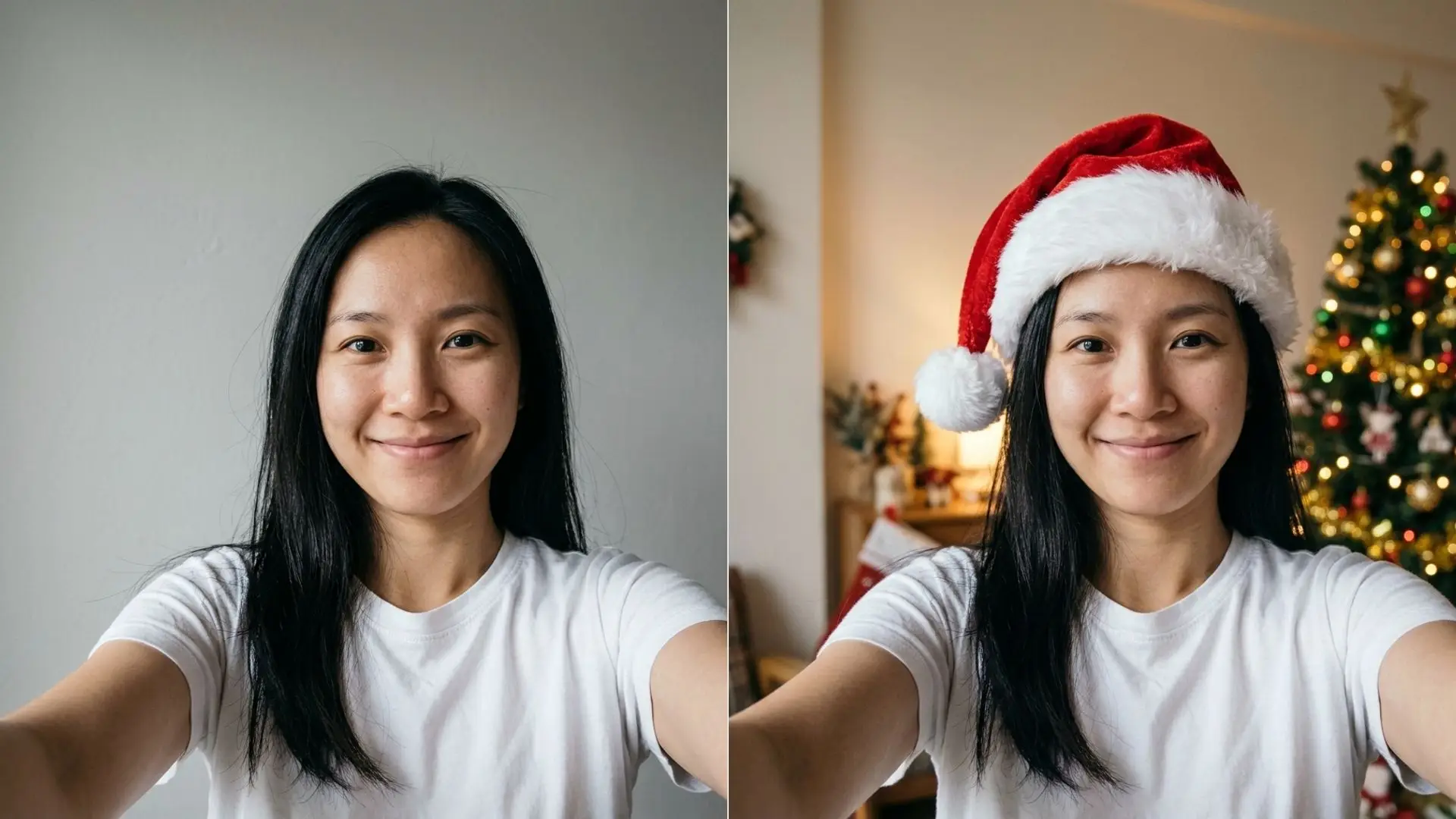
How to add a Christmas filter to photos you already took: falling snow, fairy lights, a frosted frame or a warm glow, with the people and poses kept.
TutorialsA Christmas filter is the lightest way to make a photo festive. Nobody moves and nothing is replaced. You just add snow, lights or frost.
This guide uses the Christmas photo filter, which works on a photo you already took and gives you a new file to keep.
What a Christmas filter changes and what it keeps
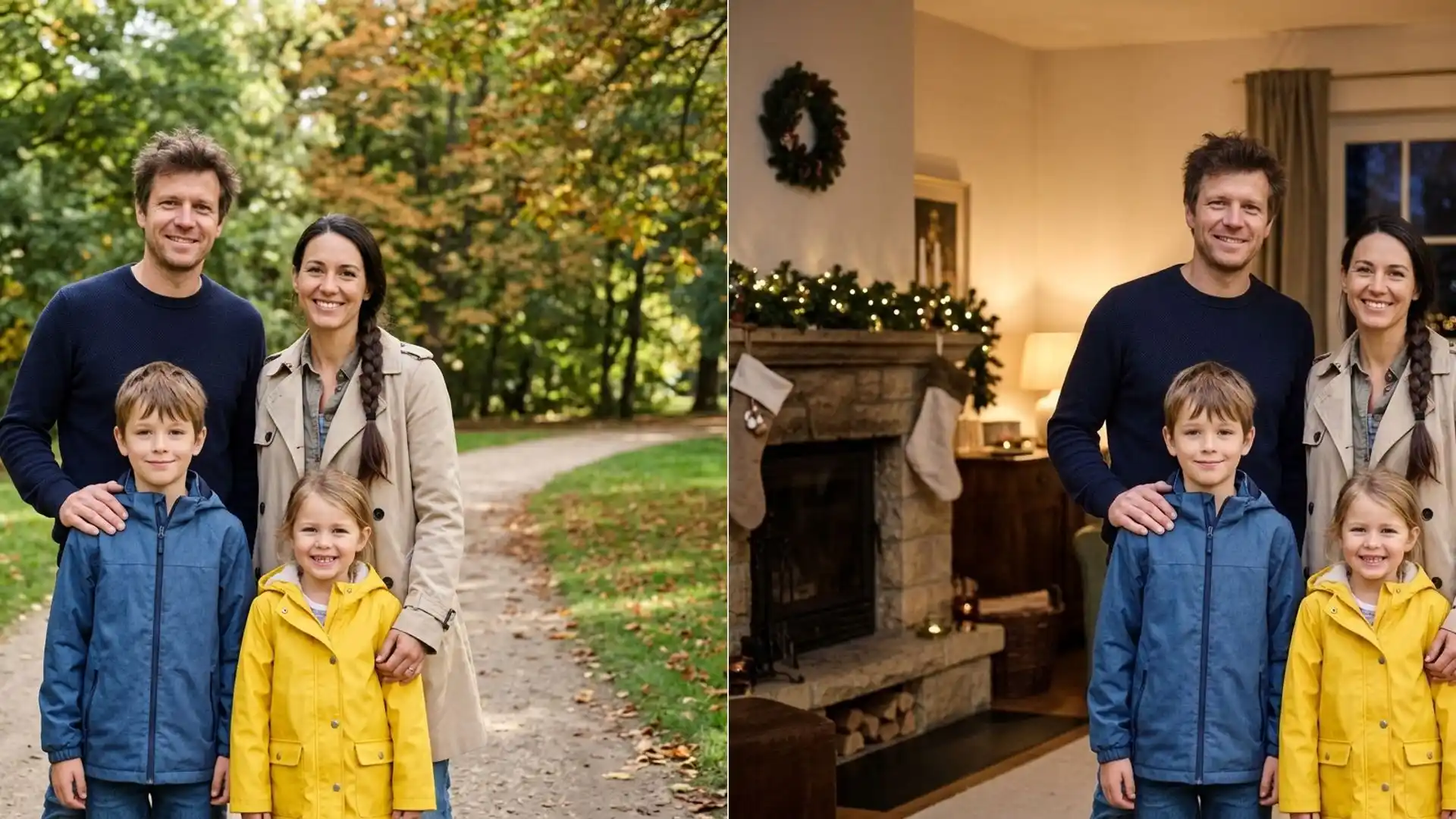
The filter is set up to keep the photo the same: the composition, the crop, the setting, the clothes, the poses and the place of every person and pet.
It only adds the effect you pick. Faces stay as they were, and effects are kept away from eyes, noses and mouths.
That suits group shots best. When everyone finally looked at the camera at the same time, you do not want a tool to rebuild the photo. You want it left alone, with a little winter on top.
That makes it different from a scene change, which moves your people somewhere new. If that is what you want, the list of Christmas card photo ideas covers the scene route.
Pick the effect for your photo
There are five effects. Each suits a different kind of photo.
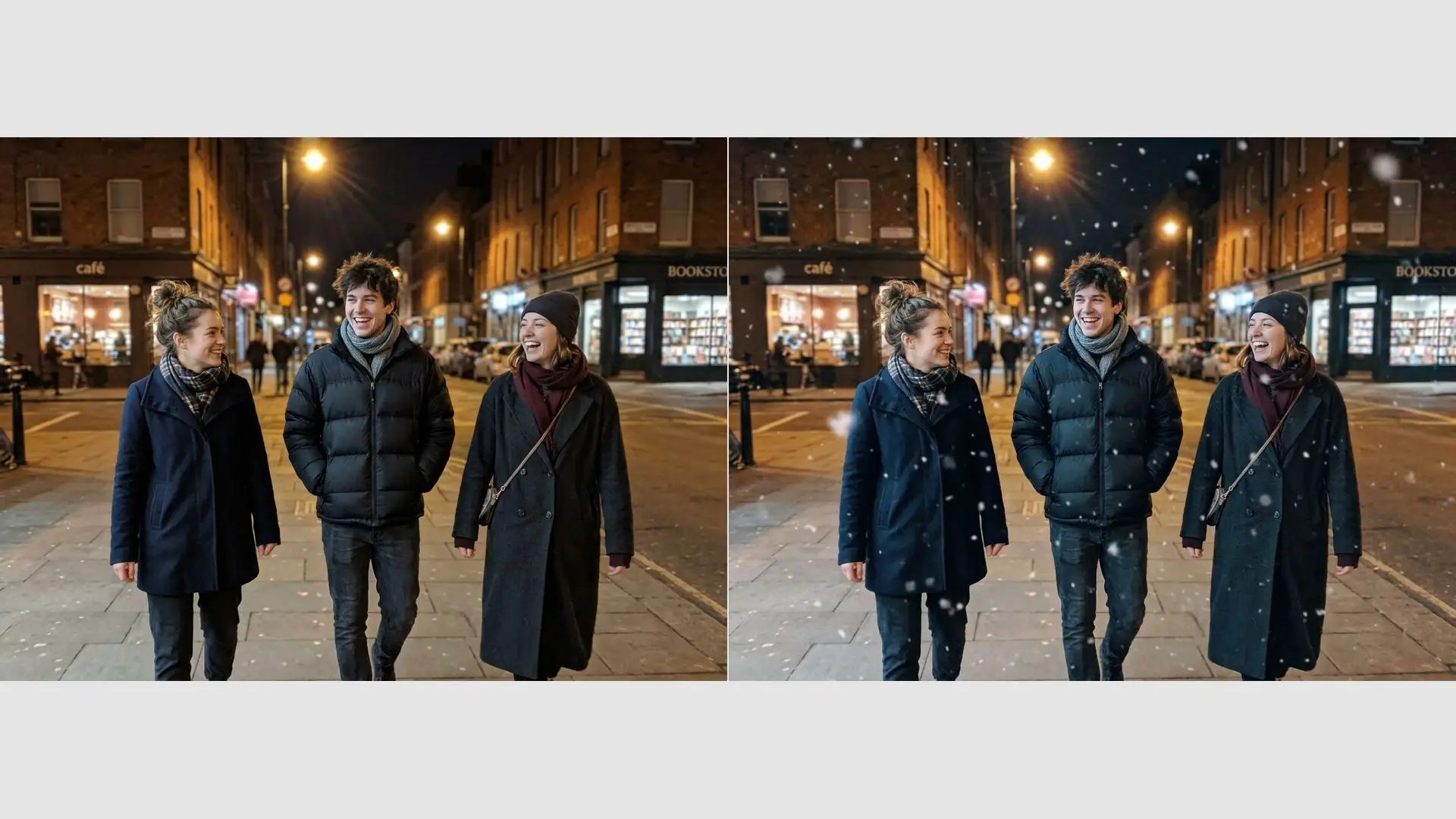
- Falling snow: soft flakes across the whole photo with a slight cool tint. Best for streets and outdoor shots.
- Fairy lights glow: warm light dots around the edges, never over a face. Best for rooms and sofas.
- Frosted window frame: ice patterns at the edges that fade to clear in the middle. Best for close portraits.
- Warm holiday glow: golden light and a soft vignette, like candlelight. Best for evening photos.
- Snow on the scene: fresh snow on the ground, roofs and branches, with no snow on people or pets. Best for gardens and buildings.
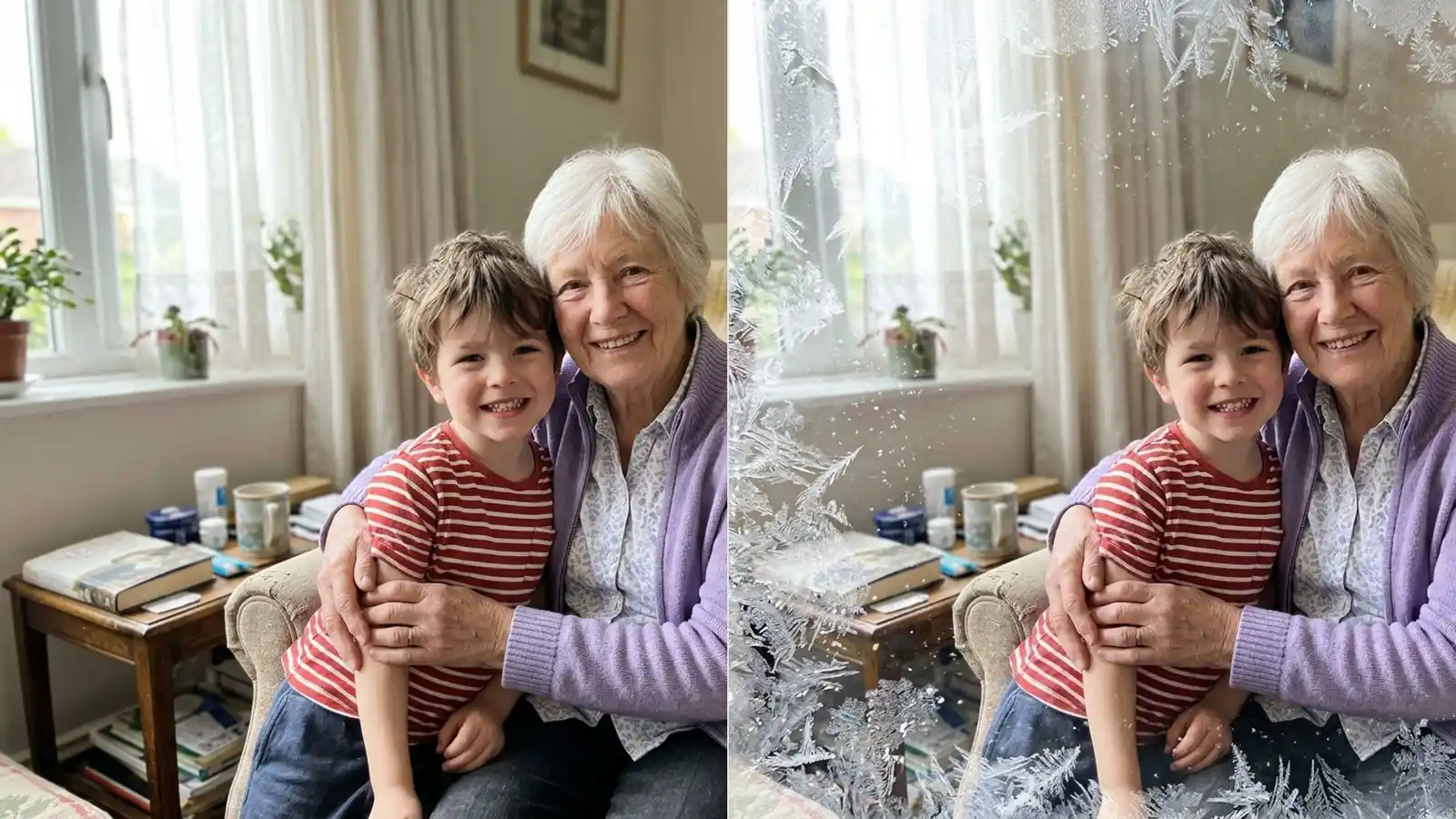
The frosted frame works well on close shots like the one above, because the middle stays clear and the faces stay sharp.
Match the effect to the light in the photo. Falling snow on a bright beach looks odd, while a warm glow on an evening dinner photo looks like it was always there. When you are unsure, start with Warm holiday glow, the softest of the five.
Step by step
- Upload the photo. JPG, PNG and WEBP all work, up to 5 MB.
- Pick one effect from the list.
- Start it and wait for the result. Each image costs 4 credits.
- Compare it with your original, then download it.
Start from the original file in your phone gallery. Photos saved from chat apps are often shrunk and compressed, and the effect cannot put back detail that is gone.
The Free plan gives you 10 credits a day, so you can try two effects on the same photo and keep the one you like.
When you are signed in, the result also stays in your History, from 3 days on Free up to 90 days on Premium. You can delete it sooner.
App filters vs editing the photo
Camera filters in social apps are a different tool, and both have their place.
App filters run live in the camera. They are free and great for a quick story, and the effect moves with you. But they work on what the camera sees right now, so you cannot use them on a photo from last week.
The photo filter works the other way round. You pick a photo you already took, even one from summer, and you get a normal image file back that you can post, print or send anywhere.
App filters also tend to sit on top of the image like a sticker layer. The photo filter adds the effect into the photo itself. With Falling snow, for example, the flakes fall behind the people as well as in front of them, which is hard to fake with a flat layer.
Pick the app filter for a moment you are sharing live. Pick the photo filter for a picture you want to keep.
Share or print it
For sharing, the downloaded file is ready to post as it is. If you send it in a chat app, send it as a file or document where the app allows it, so it is not shrunk on the way.
For print, count pixels. A common card photo of 5 by 7 inches printed at 300 pixels per inch needs 1500 by 2100 pixels. Many phone photos have that, but crops and chat copies often do not.
For a printed card, check the size first. A phone photo that looks fine on screen can be soft on paper, so upscale it before you print it on a card. The post on when 4x beats 8x on faces explains which scale to pick for a portrait.
Planning a home photo for the card first? The Christmas family photo ideas you can take at home pair well with a filter afterwards.