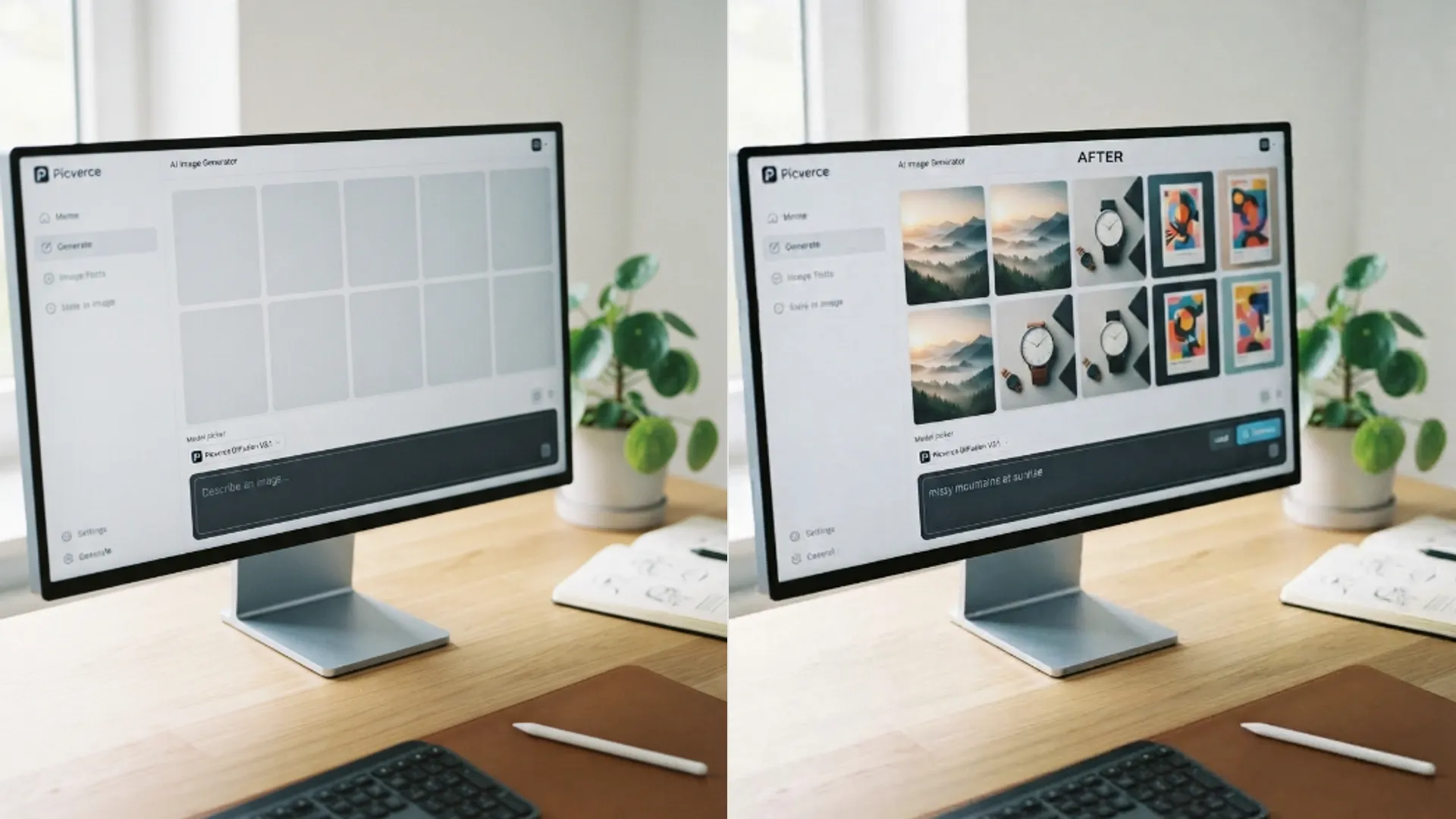
Picverce AI Image Generator workspace
How the Picverce AI generation workspace is laid out, what each setting actually changes, and why the credit cost moves with the resolution you pick.
GuidesGeneration has more settings than any other tool on the site, and most of them are per model rather than global. That single fact explains almost every confusion people have with it.
The landing at the AI Image Generator is the way in, and the workspace behind it is where the settings live.
Here is what each control does and which ones actually change your bill.
The settings are not the same for every model
This is the part worth internalising before anything else. Each model declares what it accepts, and the workspace only offers you what that model supports.
So a setting that was there a minute ago can disappear when you switch models. Nothing broke.
- Resolutions. Each model publishes its own list, and each entry has its own credit price.
- Ratios. The shapes that model will produce.
- Reference image. Some models accept one, some do not.
- Prompt improvement. Available on some models and not others.
- Variations. How many images one request can return, which is capped per model.
A model with a single resolution and no variations is not a worse model. It is a simpler one, and it is often the fastest and cheapest way to test an idea.
When I first switched from one model to another mid session and lost the reference image field, I assumed something had gone wrong. It had not. The new model simply does not take one.
Resolution is what moves the price
Credits for a generation are not a flat rate. They are attached to the resolution you choose.
That is why two runs on the same model can cost different amounts, and why comparing models by a single number does not work.
Variations multiply that. Asking for four images is four times the work, and the cap on how many you can ask for is set by the model.
The practical habit is to explore at the lowest resolution the model offers and only pay for a large one once the prompt is right.
Getting the composition wrong at high resolution costs the same as getting it right at high resolution, which is the most common way people waste credits here.
Nothing is charged when a request is refused for an unsupported setting, so a wrong guess about what a model accepts is free.
Ratio, reference and prompt help
Ratio is the shape, and it is worth setting deliberately rather than accepting a default you did not choose.
Some models will also match the ratio of a reference image you supply, which removes a decision when you are working to an existing shape.
A reference image is not a style transfer. It gives the model something to work from, and how strongly that shows depends entirely on the model.
Prompt improvement rewrites what you typed into something longer before it runs. It helps a short vague prompt and gets in the way of a carefully written one.
Turn it off once your prompts get specific. At that point it is changing decisions you already made on purpose.
Everything you set here is also available programmatically, with the same validation, through the Public API documentation.
Where your results go
Finished images land in your history alongside everything else you run on the site.
That matters more for generation than for the photo tools, because you will produce far more images and discard most of them.
Download the ones you want promptly. History retention depends on your plan, and a generation you liked three months ago may not still be sitting there.
The history entry keeps the settings alongside the image, which is genuinely useful when you want to reproduce a look and cannot remember what you used.
Reading back your own settings is a better habit than trying to remember a prompt.
A workflow that wastes fewer credits
Four steps, in order, and they cut most of the waste out of a session.
- Pick the model first, because it decides what settings exist at all.
- Draft the prompt at the lowest resolution with one variation.
- When the composition is right, raise the resolution and run it again.
- Only then ask for variations, because now you are choosing between good options rather than fishing.
Fishing at high resolution with four variations is the expensive mistake, and it is the one the interface makes easiest to commit.
Which model to draft on is the next question, and the catalog at the AI Models directory is the place to answer it rather than guessing from names.
Generation is a different discipline from fixing a photo, and if you came from the repair tools the mental model is genuinely different, as described in Picverce AI Public API for developers.
Model first, cheap drafts, expensive finals. That order is the whole method.
Everything else in the workspace is a preference you can change between runs without it costing you anything.