Connect Claude to Picverce AI MCP
Setting up the Picverce AI connector in a chat client, testing it with a call that costs nothing, and the two things that reliably go wrong first.
TutorialsSetup is short. A URL, a key, and one test call that costs nothing.
The parts that go wrong are predictable, so here is the order that avoids both of them.
Check your access first
The connector uses the same access rules as the rest of the API. An active Basic, Standard or Premium plan, or any credit pack you have bought.
A free account with no pack cannot create a key, and without a key there is nothing to connect with.
Sorting that out first saves you debugging a connection that was never going to authenticate.
The failure looks like an access error rather than an authentication one, which is a useful distinction. The key was fine, the account was not entitled.
Keys and the connector details both live under the API section of your account.
What you are connecting to is described on the MCP connector page, which is worth a skim so you know what the client is about to gain.
Create a key if you do not have one and copy it somewhere safe. It is a password in every sense that matters.
Add the connector in your client
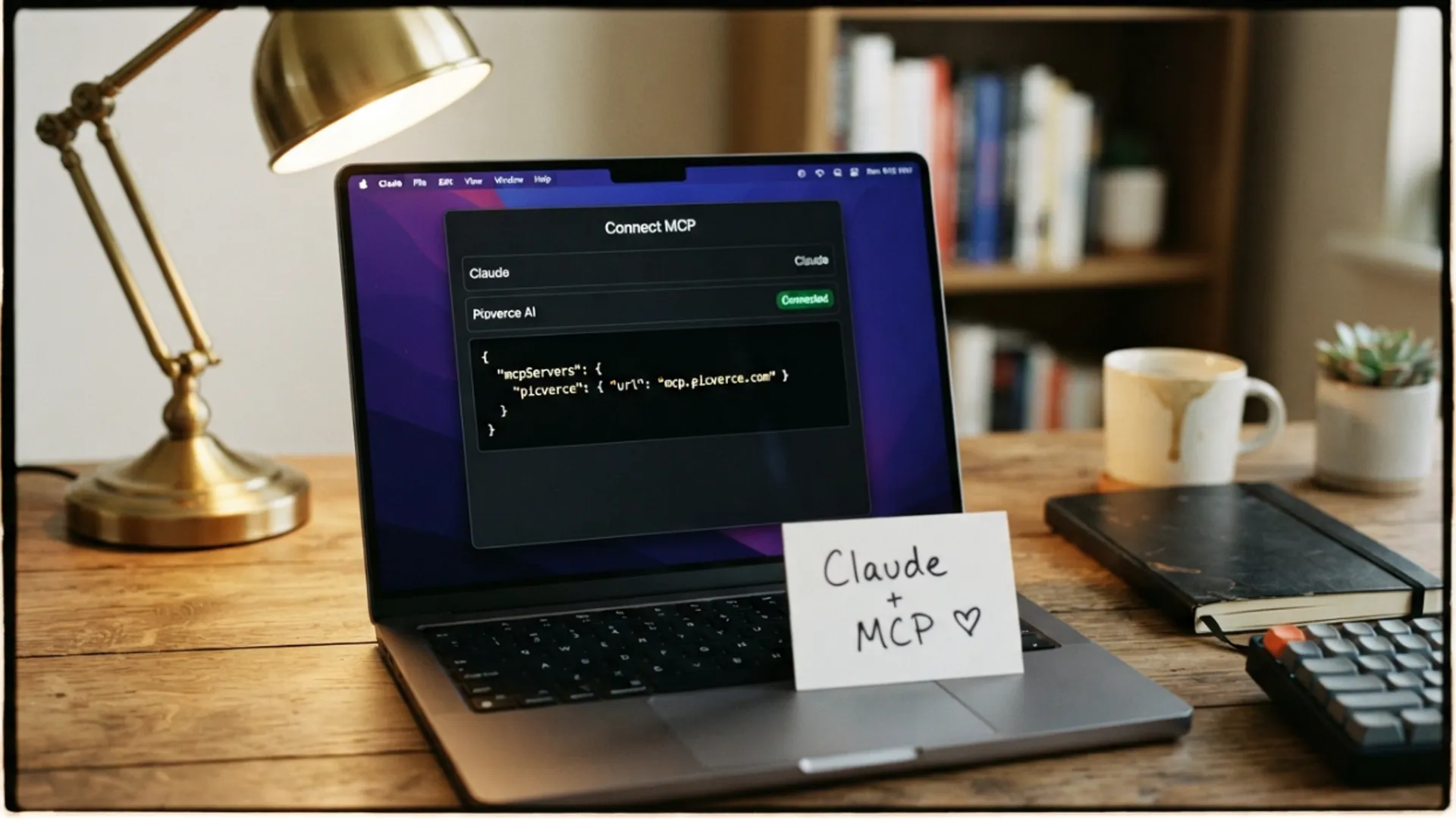
In your chat client, add a connector and give it the URL from your account, then supply your key as the bearer token.
The client handles the rest of the protocol. There is nothing to install and no local process to keep running.
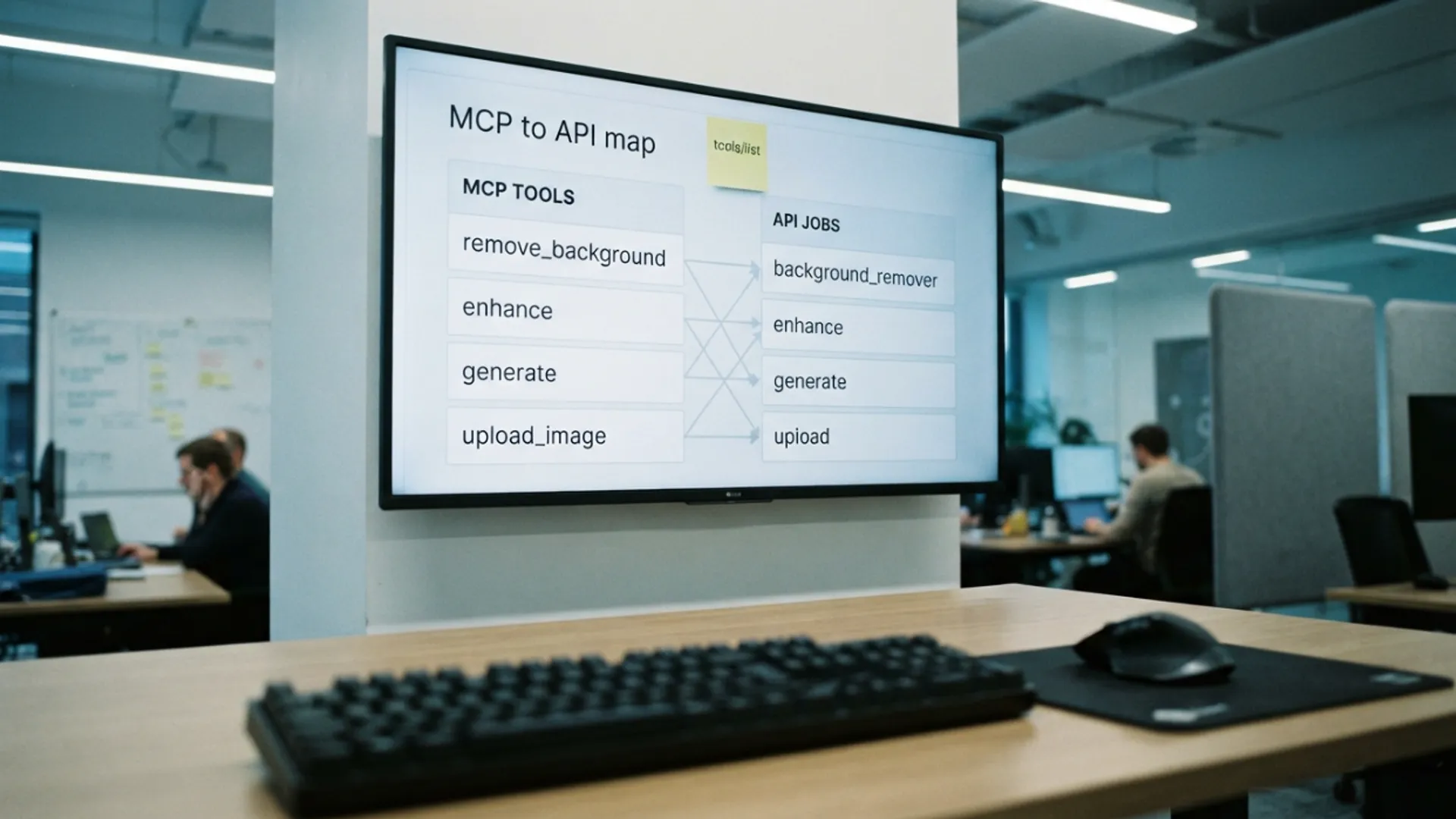
Once it connects, the client should be able to list the tools it now has. Six of them, from listing catalogs to running a job.
If the client shows fewer than six, the connection succeeded but something is filtering them, and it is worth reconnecting before going further.
Test it without spending anything
Do not start with a generation. Start with something that proves the connection and costs nothing.
Ask the assistant to list the available tools. That call reads the catalog and charges no credits.
If that comes back with a list, your URL and key are both correct and everything else is downhill.
- A list of tools means the connection works.
- An authentication error means the key is wrong or was pasted with whitespace.
- An access error means the plan or credit pack requirement is not met.
- No response at all usually means the URL is wrong.
When I set this up the first time I pasted the key with a trailing space and spent a few minutes assuming the URL was the problem. Check the simple thing first.
The listing call is worth repeating whenever anything else misbehaves later. It separates a connection problem from a job problem in one step.
Run something real
The natural first job is editing a photo you attach in the conversation.
Attach the picture and ask for something specific. Removing a background is a good first test because it is cheap and the result is obvious.
Behind the scenes the assistant stages your attachment first, because a file in a chat window is not an address a tool can be pointed at. That staging step is free.
Then it runs the job and comes back with the result. Credits are charged only when the work succeeds.
Ask for something specific rather than something vague. Remove the background gets a clean job, make this look better gets a guess.
Naming the tool outright works too. The assistant can list what is available, so referring to one by name removes the interpretation step entirely.
What the job itself does is unchanged from the website version, including all the edge behaviour in Picverce AI Background Remover cutouts.
The two things that go wrong
Both are easy to fix once you know to look for them.
The first is asking for a tool that is not runnable through the API. The error names the ones that are, so the fix is in the message.
Asking the assistant to list the tools before requesting an unusual one avoids this entirely.
The second is a generation that appears to hang. Long jobs hand back an identifier rather than a picture, and the assistant has to check on it.
A job that nobody checks does not progress on its own. If a generation seems stuck, asking about it is genuinely what moves it along.
That is a real quirk rather than a bug, and it explains most reports of a generation that never finished.
The connector and a script hit the same underlying behaviour here. If you would rather write the loop yourself, that path is in create an API key and run your first job.
Access, URL, key, free test call, then real work. Five minutes if you go in that order.
Keep the account page open the first time. Most of what you need is on it.