How to make a LinkedIn profile picture with AI
How to make a LinkedIn profile picture with AI: what a good photo looks like, a crop that fits the circle, background colors that work, and real tradeoffs.
TutorialsYour LinkedIn profile picture is often the first thing a recruiter sees. It does not need to be fancy. It needs to look like you on a good day at work.
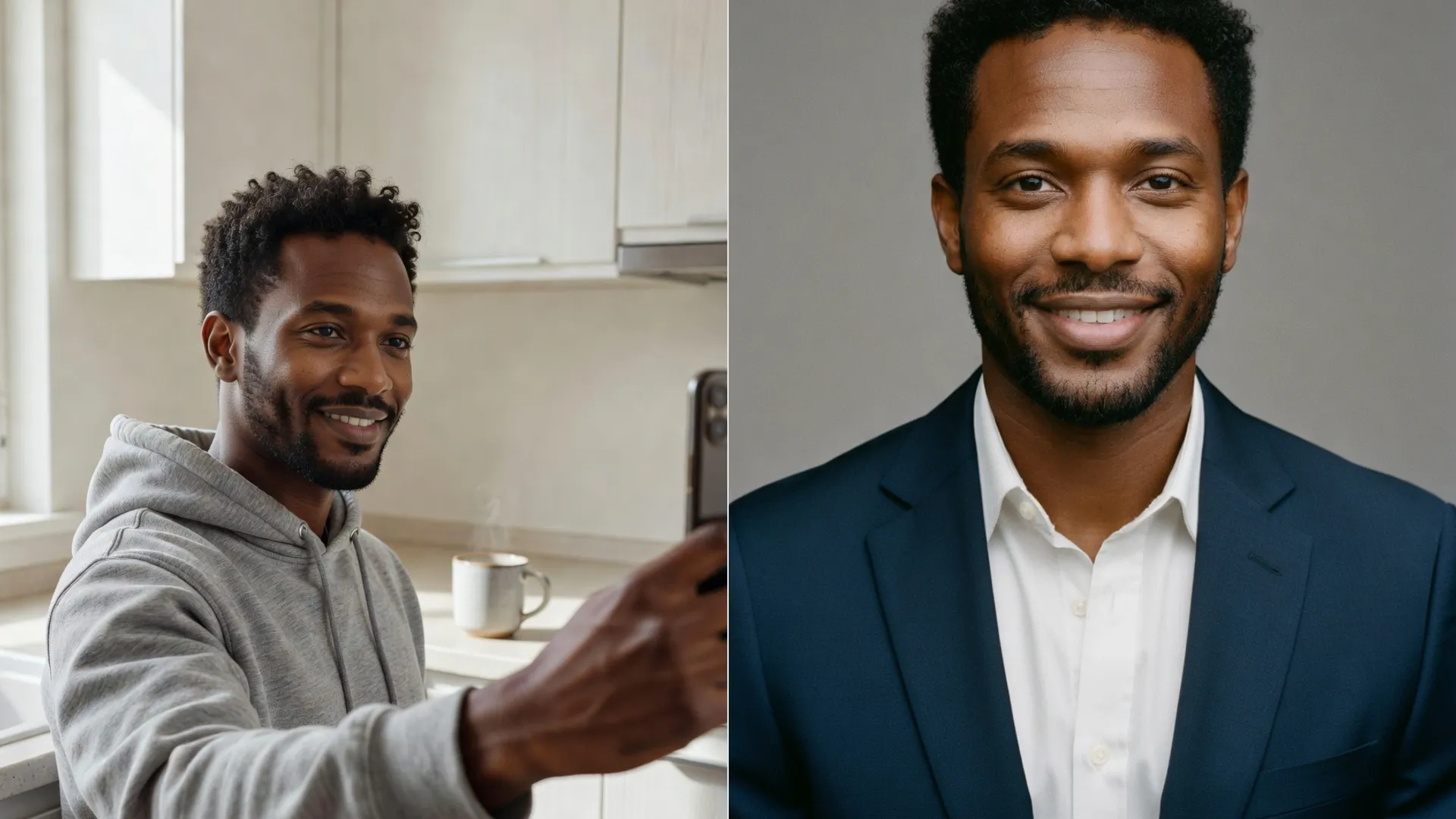
If you do not have a photo like that, an AI headshot generator can make one from a normal photo of you. This guide covers what to aim for and how to get there.
What a good LinkedIn photo looks like
Good profile pictures share a few traits, for men and women alike.
- Your face fills most of the frame. Head and shoulders, not a full body shot.
- You look at the camera, with a relaxed, natural expression.
- The light is even, with no harsh shadow across half your face.
- You wear what you would wear to work in your field.
- The background is plain or softly blurred, so nothing pulls attention from you.
Most of all, it should look like you today. People who meet you after seeing your profile should recognize you right away.
Avoid group photos cropped down to one person, sunglasses, and photos from a wedding or a night out. They tell people less about how you work.
Dress for the job you have or want. A blazer suits finance and law, a plain sweater suits tech and design, and a uniform suits fields where people know you by it.
Size and crop
LinkedIn shows your profile picture as a small circle in most places. That shape decides how you should crop it.
- Use a square image.
- Center your face in the square.
- Leave some space around your head, so the circle does not cut off your hair or chin.
- Upload a large, sharp file and let LinkedIn shrink it.
LinkedIn sets its own size and file limits and can change them. Check the current numbers on LinkedIn Help before you upload.
The headshot tool can give you a square result directly. Pick the 1:1 shape before you generate, and the crop is ready for the circle.
Background colors that work
A plain background keeps the focus on your face. The color should contrast with your hair and clothes, so you do not blend in.
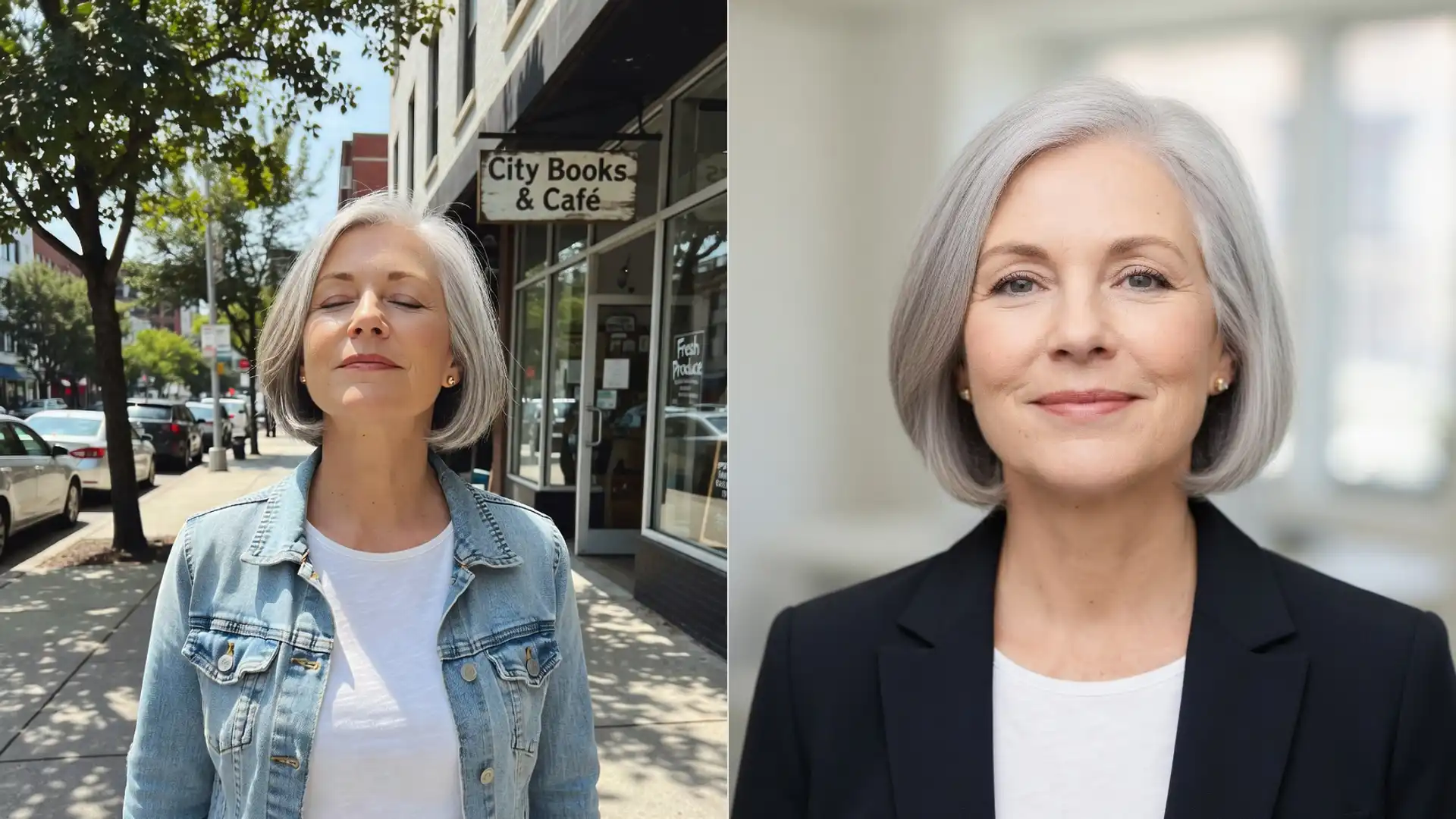
- Soft gray suits almost everyone and most industries.
- White looks clean but can feel flat, and it can merge with a light shirt.
- A blurred office reads as corporate and real.
- Black or a dark neutral works well for creative fields and light hair.
The headshot tool has background choices for Studio neutral, Office, White, Gray and Black.
Match the background to the rest of your profile. If your banner is busy, a plain gray headshot keeps the page calm. If your banner is plain, an office background adds a little context.
Like your current photo but not its background? You can remove the background from your photo and place yourself on a plain color instead, without generating a new image.
Make one with AI step by step
- Pick a clear, recent photo of yourself, facing the camera, with even light. A phone photo is fine.
- Upload it to the headshot generator.
- Choose a background, such as Gray or Office.
- Choose the shape. 1:1 is the one for a profile picture.
- Generate it. One headshot costs 4 credits, and the Free plan gives you 10 credits a day.
- Compare the result with your photo, then download it.
Check the result closely before you use it. Your face, hair and features should match the real you, because people will meet the real you.
If something looks off, try again with a sharper photo or better light. The source photo decides most of the result.
The tool also has a gender option, which only steers the clothing, and an Original shape that keeps your photo's proportions. Neither changes the credit cost.
For a team page with a more playful look, the post on making a team cartoon headshot shows a drawn style for a whole group.
AI headshot or a photographer
Both are good choices. They suit different needs.
An AI headshot is fast and costs a few credits. You can try several backgrounds in one evening, and you can make a new one when your hair or job changes.
A photographer costs more and takes a booking. In return you get direction on posing, real lighting, and a photo that is fully you, with no generated detail.
For a quick refresh of your profile, AI is usually enough. For a senior role, a company website, or print, a real photo session is often worth it.
Realism is the main thing to watch with AI. Look at your eyes, teeth, ears and hairline in the result. If any of them look unlike you, do not use that version.
Whichever you choose, keep it honest. A picture that looks like you builds more trust than one that looks like someone better lit.