How to turn a picture into a clean line drawing
How to turn a picture into a clean line drawing outline: the sketch pass redraws the photo, so printed dots, grain and compression blocks drop away.
This grid drawing tool puts a grid of equal squares over your photo so you can copy it by hand, one square at a time. Set the squares in cm or inches, label them, then print the photo and a blank grid.
By uploading you agree to our Terms & Privacy Policy
Your photo stays in your browser and is never uploaded. The grid tool uses no credits.
AI-powered photo enhancement, restoration, colorization, and object removal.
A drawing grid over your photo, in real measurements, ready to print.
Set the number of rows and columns, or set the size of each square on the printed page, from 0.5 to 10 cm or 0.25 to 4 inches.
A1 style labels on the edges, or a number in every square.
One or both diagonals in each square, for faces and curves.
A second page with the same squares and labels in light gray lines and no photo, to draw on or to copy onto your own paper.
Black, white, red or any color, 1 to 8 px wide, 20 to 100% opacity.
Grayscale, contrast and posterize to 3, 4 or 5 tones.
Trim the photo to the shape of your drawing surface.
Enter the size of your paper or canvas and the tool tells you how many squares to draw and how big each one is.
Print at 300 DPI or save both pages as a PDF.
The photo is never uploaded. It is drawn on your own device.
The grid tool is free to use and prints clean.
Works in any modern browser, nothing to install.
Upload a photo above to start.
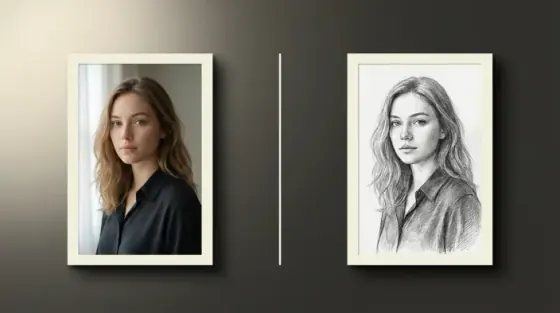
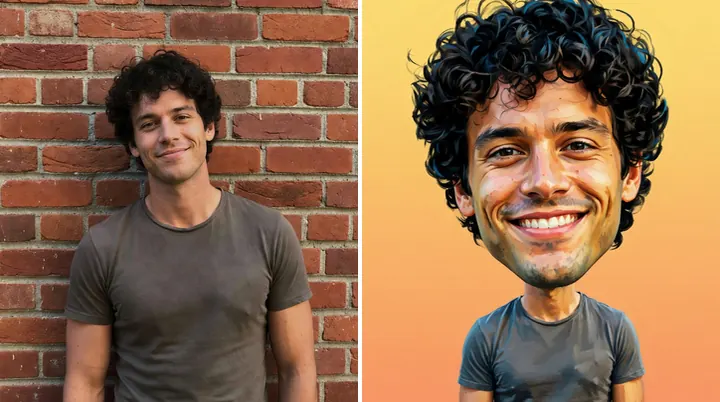
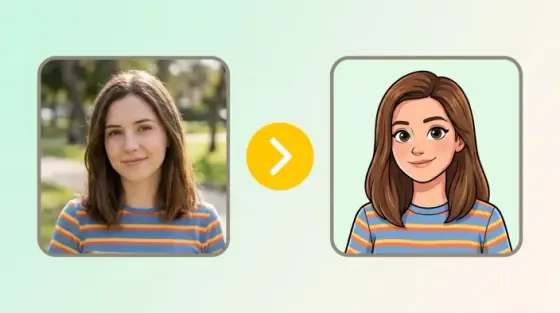
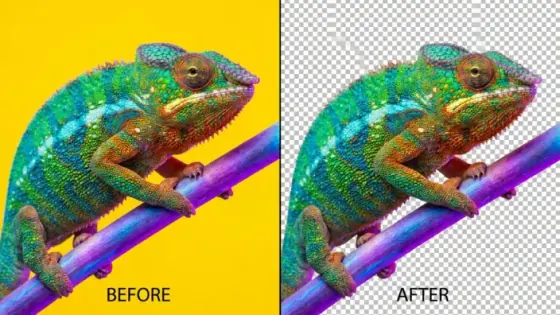
Four photos gridded with this tool, each with different settings. Yours uses your own photo.
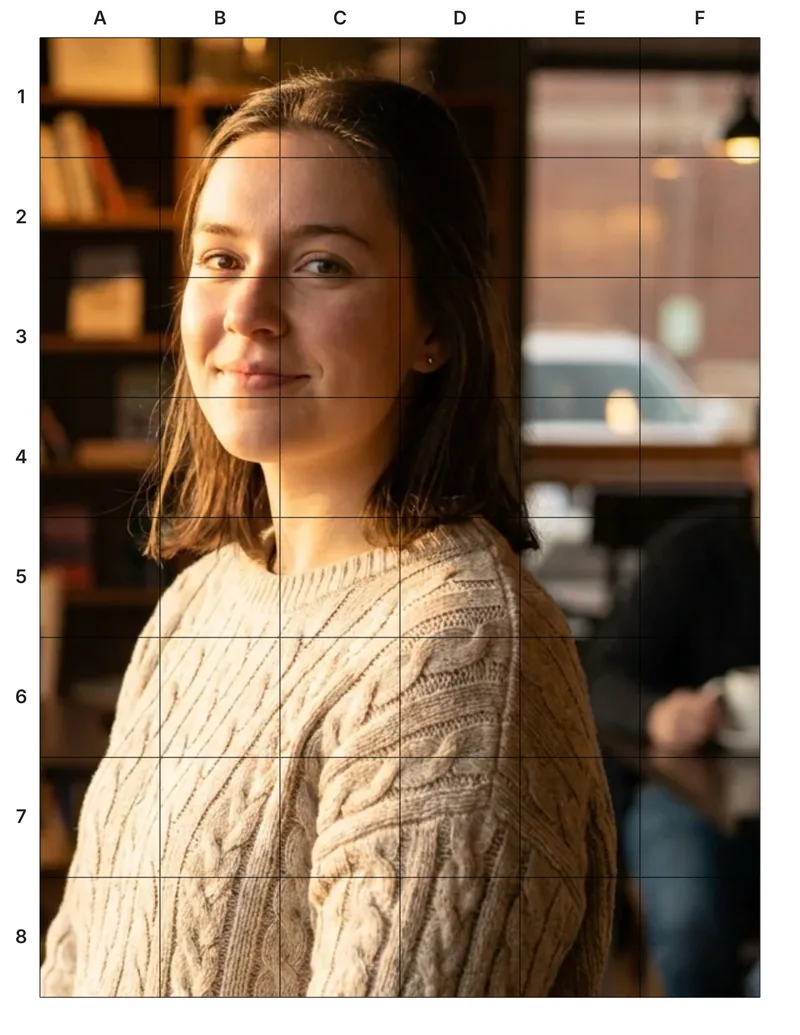
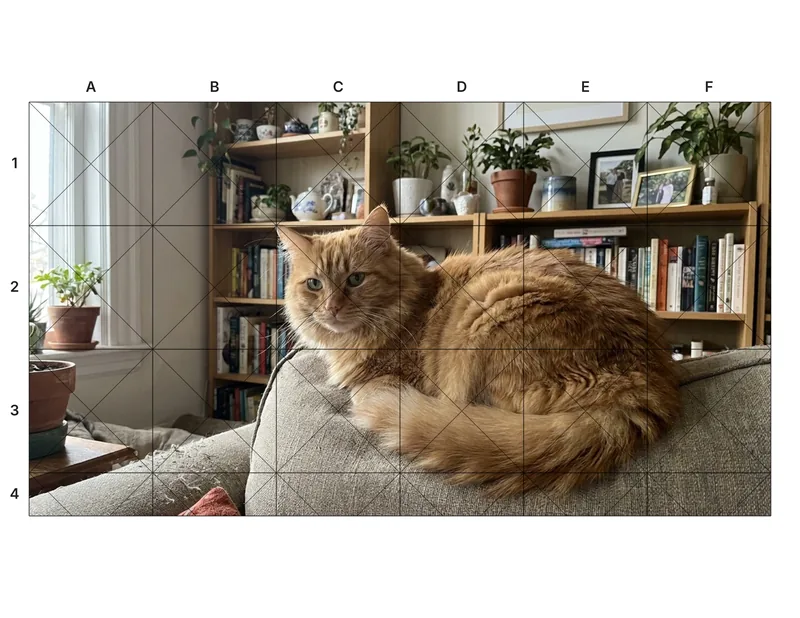
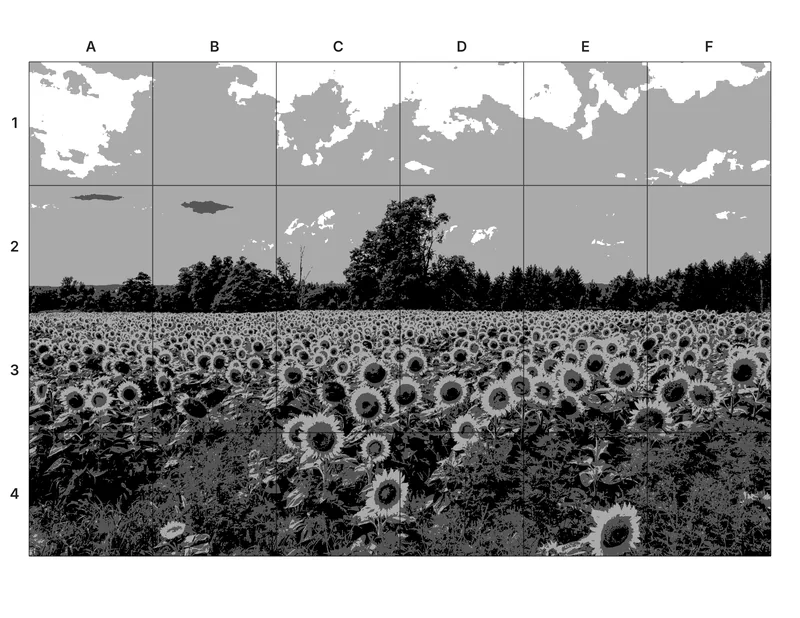
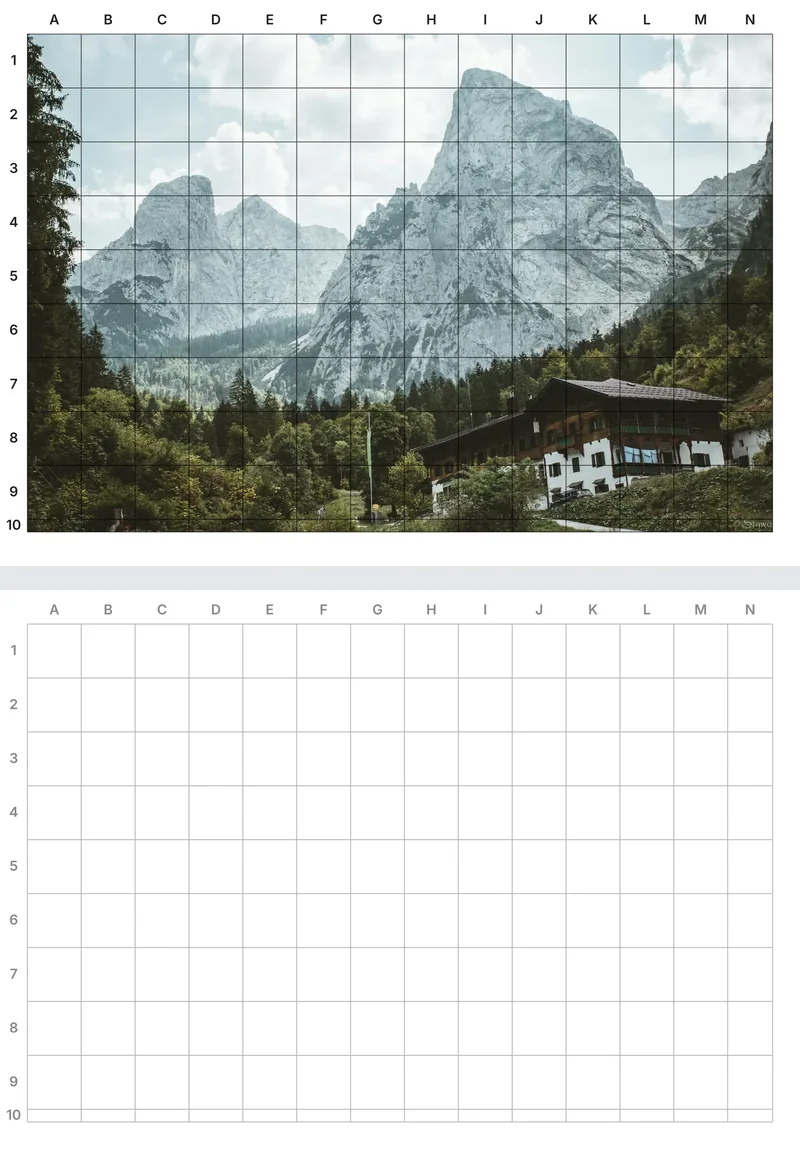
The grid method splits a hard drawing into small, easy pieces. You copy one square at a time instead of the whole picture at once.
Put a grid of equal squares over your reference photo with this tool.
Draw the same number of squares on your paper or canvas, lightly in pencil, or print the blank grid page.
Look at one square of the photo and draw only what is inside it in the matching square. The labels help you keep your place.
When the drawing is done, erase the grid lines and finish the shading.
Under the grid settings, a live readout shows the grid in real units, for example "6 × 8 squares, each 2.5 cm (0.98 in) on A4". You can set the grid by rows and columns, or type the size of one square on the printed page and let the tool count the squares.
Labels keep you from losing your place. Pick letters across the top and numbers down the side, so every square has a name like C4, or a small number in the corner of every square.
To work bigger, enter your canvas size in the drawing size calculator. It keeps the same number of squares and scales them up.
You print a 6 × 8 grid of 2.5 cm squares on A4. Your canvas is 30 × 40 cm. The calculator says: draw 6 × 8 squares, each 5 cm, on your 30 × 40 cm canvas. Every 2.5 cm square on the print becomes a 5 cm square on the canvas.
Four steps from a photo to a printed reference and a blank grid.
Pick a JPG, PNG or WEBP up to 10 MB. It opens in the grid editor and stays on your device.
Choose Letter, A4 or photo size, then set rows and columns or the size of each square in cm or inches.
Turn on A1 labels or numbered squares, diagonals, and grayscale or posterize for values.
Print the gridded photo and the blank grid together, save them as a PDF, or download the PNGs.
Upload a photo and the grid is ready in seconds.
How to turn a picture into a clean line drawing outline: the sketch pass redraws the photo, so printed dots, grain and compression blocks drop away.
Both cost 3 credits and both restyle a photo, but only one of them reliably survives being printed. Which Picverce AI tool to open for paper.
One engagement photo turned into line art for a save the date card. What Picverce AI Photo to Sketch handled and where the print nearly failed.
What you get with every tool on the site.
Enhance, upscale, restore, remove backgrounds, generate images and make cards, signs and flyers from one account.
The free plan refills each day, so you can try the tools before you buy credits or a plan.
Every tool page, guide and help text is available in both languages.
Signed-in results stay in your History for 3 days on Free and up to 90 days on Premium. You can delete them sooner.
Developers can run the same tools from code with an API key, or from an AI assistant through the MCP connector.
Make any result bigger for print or large screens without starting over.
The grid method, square sizes and printing.
The grid method is a way to copy a photo by hand. You draw a grid over the photo and the same grid on your paper, then copy one square at a time. Each square is a small, simple shape, so proportions stay right across the whole drawing.
Start with 4 × 4 or 6 × 6. Smaller squares give you more detail to match, but take longer. For example, 6 columns across a portrait photo on A4 gives 6 × 8 squares of about 3.2 cm each. Faces and hands often need smaller squares than skies or walls.
Keep the same number of squares and make each square bigger. Type your canvas size into the drawing size calculator and it tells you the square size, for example 5 cm squares for a 6 × 8 grid on a 30 × 40 cm canvas. If the photo and canvas have different shapes, it shows the space left over and can crop the photo to fit.
Yes. Pick letters and numbers to label the columns A, B, C across the top and the rows 1, 2, 3 down the side, or pick numbered squares to put a small number in the corner of every square, counted left to right and top to bottom.
They help you see values, which means how light or dark each area is. Grayscale removes color so you judge only light and dark. Posterize groups the photo into 3, 4 or 5 tones, so you can block in the darks, the middle tones and the lights before the detail.
No. The grid is drawn in your browser on your own device, and the download and print come straight from there. Your photo is never sent to Picverce AI, and the tool uses no credits.
Choose US Letter (8.5 x 11 in) in the United States, Canada and Mexico, and A4 (210 x 297 mm) in most other countries. The tool picks one from your browser language, and you can change it. Photo size draws the grid over the photo at its own resolution instead.
Yes. The blank grid page is on by default. It has the same squares and labels in light gray lines with no photo, and it prints as page 2 in the same print dialog, or downloads as a second PNG.